
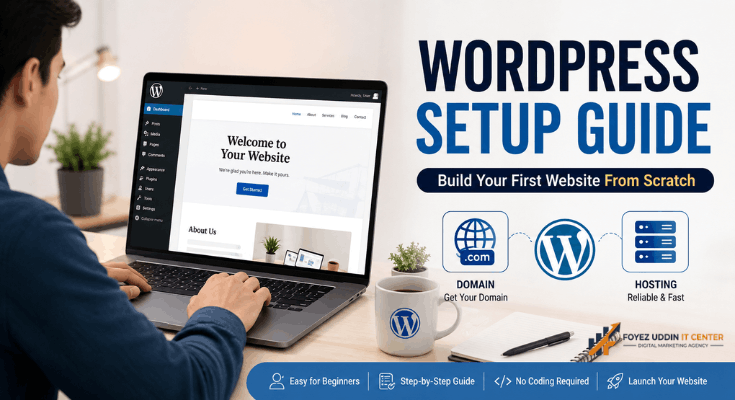
Starting a website feels overwhelming. However, it does not have to be.
This WordPress setup guide was built for absolute beginners. You do not need coding skills. You just need this guide and about 30 minutes.
By the end, you will have a live website. Let’s get started.
Why Choose WordPress for Your First Website?
WordPress powers over 40% of all websites online. That is not an accident.
It is free, flexible, and beginner-friendly. Therefore, it is the top choice for bloggers, small businesses, and hobbyists alike.
Here is why WordPress stands out:
- Free core software with no licensing fees
- Thousands of themes for instant design
- Massive plugin library for added features
- Strong community support for troubleshooting
- SEO-friendly structure built into its foundation
For example, this very post uses WordPress principles you will apply yourself.
What You Need Before You Start
Before diving into your WordPress setup guide journey, gather a few basics.
- A domain name (your website’s address, like yoursite.com)
- A web hosting plan (where your site’s files live)
- A valid email address for account setup
- About 30 minutes of uninterrupted time
Do not worry if these terms sound unfamiliar. We will explain each one below.
Understanding Domains and Hosting
Think of your domain as your home’s street address. Meanwhile, hosting is the actual house.
You need both to have a functioning website. Many hosting companies bundle them together.
Popular beginner-friendly hosts include
- Bluehost
- Hostinger
- SiteGround
- DreamHost
Each offers one-click WordPress installation. This makes setup dramatically easier.
Step-by-Step WordPress Setup Guide
Now for the main event. Follow these steps carefully.
Step 1: Purchase Hosting and a Domain
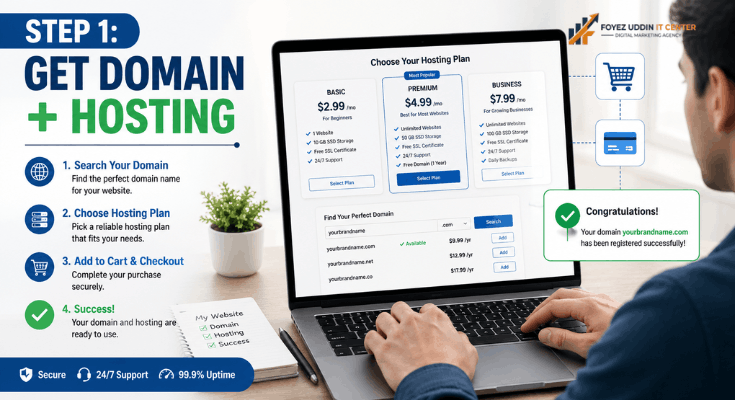
Visit your chosen hosting provider’s website. Select a beginner or starter plan.
Most plans cost between $3 and $10 per month. However, prices vary by provider and promotion.
During checkout, you will register your domain name. Choose something short and memorable.
Step 2: Install WordPress
Nearly all modern hosts offer one-click WordPress installs. This eliminates technical complexity entirely.
Here is the general process:
- Log into your hosting control panel (often cPanel).
- Find the “Install WordPress” or “Website” section.
- Click install and select your domain.
- Create your admin username and password.
- Wait a few minutes for installation to complete.
That’s it. Your WordPress foundation is now live.
Step 3: Log Into Your WordPress Dashboard
Navigate to yoursite.com/wp-admin. Enter your credentials.
You will land on the WordPress dashboard. This is your website’s control center.
From here, you manage everything. That includes design, content, and functionality.
Step 4: Choose and Install a Theme
Your theme controls your site’s visual appearance. Choosing one is simple.
In your dashboard, click Appearance, then Themes. Browse the free options available.
Popular beginner themes include:
- Astra
- OceanWP
- Neve
- GeneratePress
Select one, click Install, then Activate. Your site’s look changes instantly.
Step 5: Install Essential Plugins
Plugins add functionality without coding. Think of them as apps for your website.
Every beginner should install these core plugins:
- Yoast SEO or Rank Math for search optimization
- UpdraftPlus for automatic backups
- WP Super Cache for faster loading speeds
- Wordfence Security for protection against threats
- Contact Form 7 for visitor contact forms
To install, go to Plugins, then Add New. Search, install, and activate each one.
Step 6: Create Your Core Pages
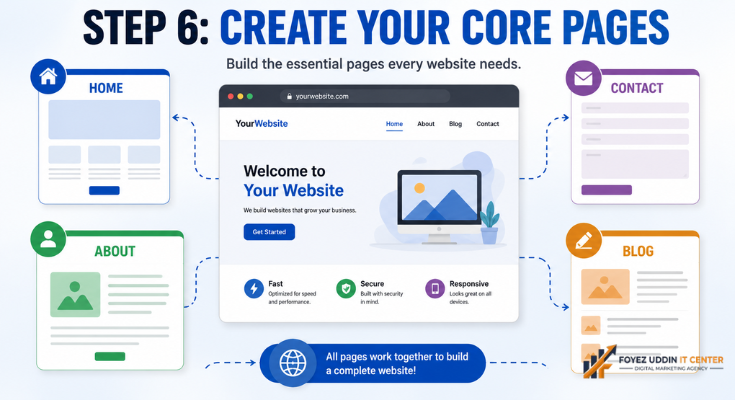
Every website needs foundational pages. Do not skip this step.
Create these pages first:
- Home page: your main landing point
- About page: your story and mission
- Contact page: how visitors reach you
- Blog page: where your posts will appear (if applicable)
Navigate to Pages, then Add New to create each one.
Step 7: Configure Your Site Settings
Head to Settings, then General. Set your site title and tagline.
Next, visit Settings, then Permalinks. Select the “Post name” option.
This creates clean, SEO-friendly URLs. For example: yoursite.com/blog-post-title.
Common Beginner Mistakes to Avoid
Even with a solid WordPress setup guide, mistakes happen. Watch for these pitfalls.
- Skipping backups before making changes
- Installing too many plugins, which slows your site
- Ignoring mobile responsiveness during design
- Forgetting to update WordPress core and plugins regularly
- Choosing weak passwords for admin accounts
Therefore, always prioritize security and simplicity. Less is often more.
Tips for Optimizing Your New Website
Your site is live. However, the work does not stop there.
Consider these next steps for growth:
- Write consistent, valuable content for your audience.
- Optimize images to improve page speed.
- Set up Google Analytics to track visitors.
- Submit your sitemap to Google Search Console.
- Engage on social media to drive traffic.
For example, weekly blog posts help build authority over time. Consistency matters more than perfection.
How Long Does WordPress Setup Really Take?
Most beginners complete setup in 30 to 60 minutes. However, customization can take longer.
Design tweaks, content writing, and plugin configuration require ongoing attention. That said, your core site can go live today.
Do not aim for perfection immediately. Instead, launch, then improve gradually.
Final Thoughts on Your WordPress Setup Guide
Building a website no longer requires technical expertise. This WordPress setup guide proves that anyone can launch a professional site.
Start with hosting and a domain. Then, install WordPress, choose a theme, and add key plugins.
Finally, create your core pages and adjust your settings. Your website will be ready within the hour.
Therefore, stop overthinking and start building. Your online presence is closer than you think.
Frequently Asked Questions
Is WordPress really free?
The software itself is free. However, you pay for hosting and your domain name.
Do I need coding knowledge?
No. Themes and plugins handle design and functionality visually.
Can I switch themes later?
Yes. You can change themes anytime without losing your content.
Is WordPress good for small businesses?
Absolutely. It scales well from simple sites to full online stores.
How much does a WordPress website cost?
Basic setups start around $5 to $15 per month. This covers hosting and your domain. Premium themes and plugins can add extra cost later.
What is the difference between WordPress.com and WordPress.org?
WordPress.org is the self-hosted version covered in this guide. It offers full control. WordPress.com is a hosted service with more limits, especially on the free plan.
Can I build an online store with WordPress?
Yes. The WooCommerce plugin turns any WordPress site into a full e-commerce store. It supports payments, shipping, and inventory management.
How do I keep my WordPress site secure?
Use strong passwords and enable two-factor authentication. Additionally, keep WordPress core, themes, and plugins updated. A security plugin like Wordfence adds another layer of protection.


3 Comments on “WordPress Setup Guide: How to Build Your First Website From Scratch”