
Is your Shopify store loading slowly? You are not alone.
Many beginners assume deleting apps is the only fix. That belief is misleading.
You can optimize Shopify store speed without deleting apps. It simply requires the right strategy.
This guide is written for total beginners who simply want to optimize Shopify store speed without deleting apps. No coding skills needed. No technical background required.
By the end, you will understand what actually slows a store down. You will also learn practical, safe fixes.
Let’s dive in.
Why Shopify Store Speed Matters So Much
Speed influences everything. It affects sales. It affects search rankings. It affects customer trust.
Research shows most shoppers abandon a site if it takes longer than three seconds to load. That is a significant drop-off point.
Slow stores also rank lower on Google. Search engines consistently favor faster websites.
Therefore, improving Shopify store speed is not optional. It directly impacts your revenue potential.
The encouraging part? You do not need to remove your favorite apps to achieve this.
What Actually Slows Down a Shopify Store?
Before fixing anything, it helps to understand the real causes. Speed problems rarely come from one single issue.
Instead, they usually build up gradually. Here are the most common contributors:
- Unoptimized images that are too large for the page
- Heavy theme code with unnecessary animations or effects
- Too many apps loading scripts on every single page
- Render-blocking JavaScript that delays page display
- Poor hosting or CDN configuration for third-party tools
- Excessive custom fonts loaded simultaneously
Notice that “having many apps” is only one small factor. Configuration matters far more than quantity.
This is why deleting apps often fails to solve the real problem. The root cause usually lies elsewhere.
Understanding these causes is the first step toward learning how to optimize Shopify store speed without deleting apps.
Common Myth: “Delete Apps to Fix Speed”
Many beginners believe deleting apps is the only solution. This myth spreads quickly across forums and blogs.
However, apps are rarely the sole cause of slowness. Often, the issue is how they are configured.
For example, an app might load unnecessary scripts on every page. That creates unnecessary loading delays.
But the fix is optimization, not deletion. You can keep your apps and still boost performance.
In fact, thousands of store owners optimize Shopify store speed without deleting apps every single month. It is a realistic, achievable goal.
Let’s explore exactly how.
How to Optimize Shopify Store Speed Without Deleting Apps
Below are proven, beginner-friendly methods. Each one is simple to follow, even without technical experience.
1. Choose a Lightweight Shopify Theme
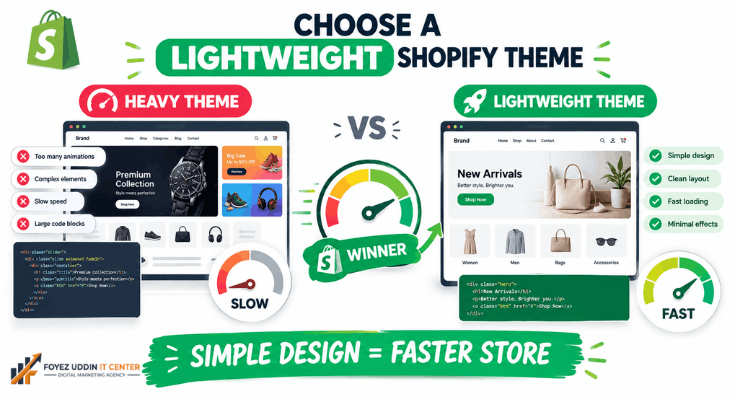
Your theme plays a massive role in speed. Heavy themes slow everything down significantly.
Key tips:
- Choose official Shopify themes built for performance
- Avoid themes with excessive animations or parallax effects
- Check theme speed scores before installing anything new
- Simpler themes almost always load faster
A clean theme reduces load time dramatically. This remains one of the easiest wins available.
2. Compress and Optimize Images
Large images are a major speed killer. Most beginners upload photos without compressing them first.
What to do:
- Use TinyPNG or Shopify’s built-in image compressor
- Resize images to the exact dimensions needed for display
- Use WebP format whenever possible
- Avoid uploading unnecessarily large files from your phone or camera
This single step can dramatically improve loading speed. It also requires zero coding knowledge whatsoever.
3. Enable Lazy Loading
Lazy loading delays images until visitors actually scroll to them. This reduces the initial load burden.
Most modern Shopify themes support lazy loading by default. However, older themes sometimes lack this feature.
Therefore, check your theme settings carefully. Enable lazy loading manually if it is not already active.
4. Limit Apps Running on Every Page
You do not need to delete apps. However, you should control exactly where they load.
Steps:
- Check each app’s individual settings panel
- Disable app scripts on pages where they are not truly needed
- Use apps offering “conditional loading” or “page targeting” features
- Avoid apps that inject tracking scripts across every page unnecessarily
For example, a review app rarely needs to load on your homepage. Limiting where scripts activate reduces overall bloat.
This single habit is one of the most effective ways to optimize Shopify store speed without deleting apps.
5. Reduce the Number of Redirects
Redirects create extra loading steps behind the scenes. Each redirect adds measurable delay.
Check your Shopify settings for outdated redirects. Remove any that are no longer necessary for your store.
This fix is small but frequently overlooked by beginners.
6. Use a Speed Testing Tool Regularly
You cannot fix what you never measure. Testing helps identify genuine problem areas.
Recommended tools:
- Google PageSpeed Insights
- GTmetrix
- Shopify’s built-in Speed Report (Online Store > Themes > Speed)
Run these tests monthly. This habit helps you catch new speed issues before they escalate.
Regular testing also proves whether your efforts to optimize Shopify store speed without deleting apps are actually working.
7. Minimize Custom Fonts
Custom fonts look visually appealing. However, they can slow load times considerably.
Tips:
- Limit yourself to one or two fonts maximum
- Use system fonts whenever design allows
- Avoid loading multiple font weights unnecessarily
Fewer fonts mean faster rendering overall. This adjustment is easy even for complete beginners.
8. Clean Up Unused Theme Code (Without Coding)
Many themes carry leftover code from previous customizations. This adds unnecessary page weight.
If you are non-technical, ask Shopify Support or a certified Shopify expert to review this for you. You never need to touch code yourself.
This process keeps your theme lean, tidy, and efficient long-term.
9. Use a Content Delivery Network (CDN).
Shopify already uses a global CDN by default for core store assets. This is great news for beginners.
However, ensure any third-party apps you install also rely on reliable CDNs. This reduces server strain and speeds up worldwide delivery.
Combining CDN reliability with smart app settings helps you optimize Shopify store speed without deleting apps across every region.
10. Audit Apps Instead of Deleting Them
Instead of deleting apps, audit them regularly. Ask these simple questions:
- Is this app actively being used by my store?
- Does it load scripts site-wide unnecessarily?
- Can its script be limited to specific pages only?
- Does the app offer a “lightweight mode” or “performance mode”?
This process helps you optimize Shopify store speed without deleting apps effectively. You retain full functionality while still improving performance.
Advanced Beginner Tips for Long-Term Speed
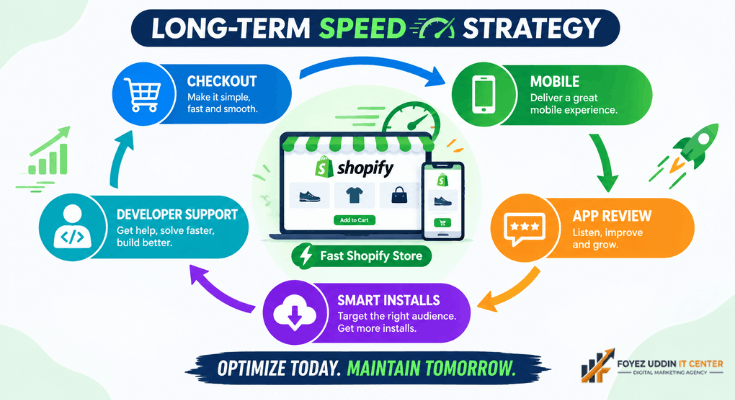
Once you handle the basics, consider these additional habits. They require minimal effort but produce lasting results.
These extra habits go beyond the basics to further optimize Shopify store speed without deleting apps over the long term.
Review Your Checkout Speed Separately
Checkout pages sometimes load different scripts than your homepage. Slow checkouts can hurt conversions directly.
Test this page separately using speed tools. Address any app scripts specifically loading there unnecessarily.
Prioritize Mobile Performance
Most Shopify shoppers browse on mobile devices. Therefore, mobile speed deserves special attention.
Always test your store using mobile simulation settings. Desktop speed alone does not tell the full story.
Schedule Monthly App Reviews
Set a recurring reminder every month. Review which apps remain active, and confirm their configurations still make sense.
This ongoing habit prevents speed problems from silently building up over time.
Avoid Installing Apps “Just in Case”
Every new app adds potential weight. Only install tools you genuinely plan to use immediately.
For example, avoid installing three different pop-up apps hoping one performs better. Test one thoroughly before adding another.
Communicate With App Developers
Many app developers actively optimize their scripts when contacted. If an app feels slow, reach out to support directly.
Often, they offer settings or updates that reduce loading impact significantly.
How Fast Should Your Shopify Store Actually Be?
Beginners often ask what “fast enough” really means. It helps to have a clear benchmark.
General speed targets:
- Under 2.5 seconds for main content to load (Largest Contentful Paint)
- Under 100 milliseconds for the store to respond to clicks (input delay)
- A Shopify Speed Score above 60 is generally considered acceptable
Anything slower usually signals room for improvement. However, do not panic over small fluctuations.
Speed scores shift slightly based on network conditions. Instead, watch for consistent trends over several weeks.
Keeping these benchmarks in mind helps you optimize Shopify store speed without deleting apps with a clear, measurable target.
Common Mistakes Beginners Make While Fixing Speed
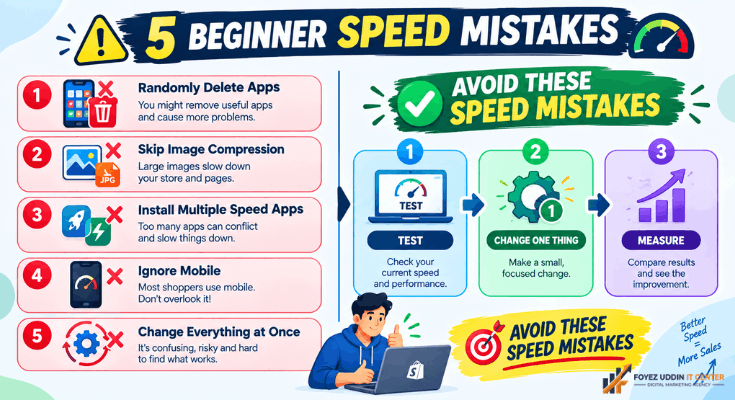
Even well-intentioned beginners often make small errors. Avoiding these mistakes saves time and frustration.
Frequent mistakes include:
- Deleting apps randomly instead of auditing them first
- Uploading images without any compression at all
- Installing multiple speed-boosting apps simultaneously
- Ignoring mobile speed while only checking desktop results
- Changing multiple settings at once, making problems hard to trace
For example, installing three “speed optimizer” apps together can actually conflict. These apps sometimes compete for the same resources.
Therefore, always test one change at a time. This approach makes problems easier to identify and reverse if needed.
Avoiding these mistakes makes it far easier to optimize Shopify store speed without deleting apps successfully.
A Real-World Example of Fixing Speed the Right Way
Consider a small business owner running a clothing store. Her site loaded in nearly seven seconds.
She initially considered deleting five apps immediately. However, she decided to audit them first instead.
She discovered one review app loaded heavy scripts on every single page. It was only needed on product pages.
After limiting that script’s location, her load time dropped to four seconds. She kept every app she needed.
Next, she compressed her product images using a free tool. Her load time improved again, reaching under three seconds.
This example shows configuration changes often outperform deletion. Her results came from smart adjustments, not removal.
Her story proves that anyone can optimize Shopify store speed without deleting apps, regardless of technical skill level.
Understanding Shopify’s Built-In Speed Report
Shopify provides a free speed report inside your admin dashboard. Many beginners overlook this powerful tool.
To access it:
- Go to Online Store
- Click Themes
- Select View Speed Report
This report compares your store’s speed to similar stores in your industry. It also highlights specific improvement suggestions.
Reviewing this report monthly helps you track real progress. It also confirms whether your changes are actually working.
This built-in tool makes it much easier to optimize Shopify store speed without deleting apps, since it points to the exact problem areas.
Balancing Functionality and Performance
Many beginners feel torn between features and speed. However, this does not have to be an either-or decision.
Think of your store like a well-organized toolbox. You do not need to throw out every tool to make it lighter.
Instead, organize your tools efficiently. Use them only where truly necessary.
This mindset applies directly to Shopify apps. Keep what serves your customers, and optimize how it runs.
Ultimately, thoughtful configuration protects both your store’s functionality and its performance simultaneously.
This balanced mindset is really what it means to optimize Shopify store speed without deleting apps the right way.
Quick Checklist for Beginners
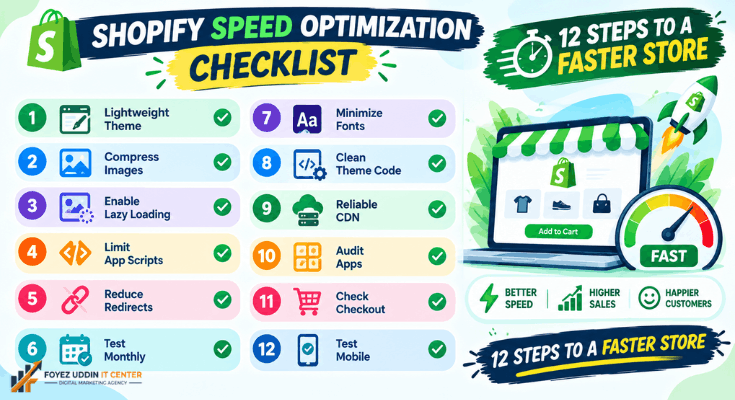
Here is a simple checklist you can follow today:
- Choose a lightweight theme
- Compress all images before uploading
- Enable lazy loading across your store
- Limit app scripts to needed pages only
- Remove old, unused redirects
- Test speed monthly using trusted tools
- Reduce custom fonts to a minimum
- Clean unused theme code with expert help
- Confirm reliable CDN usage for all apps
- Audit apps regularly instead of deleting them
- Check checkout page speed separately
- Prioritize mobile performance testing
Following this checklist consistently will improve your store’s overall performance. It also builds strong long-term maintenance habits.
Bookmark this checklist whenever you need a quick reminder to optimize Shopify store speed without deleting apps.
Final Thoughts
You do not need advanced technical skills to fix your website’s performance. Anyone can learn to optimize Shopify store speed without deleting apps.
Focus on images, themes, app configuration, and consistent testing. These small, manageable changes create meaningful results over time.
Start with one fix today. Then gradually apply the rest of this guide to optimize Shopify store speed without deleting apps for good.
Your store will reward you with faster load times, happier visitors, and stronger search rankings.
Frequently Asked Questions (FAQs)
1. Can I really optimize Shopify store speed without deleting apps?
Yes. Most speed issues stem from configuration, not app quantity. Optimizing settings often outperforms deleting tools you actually need.
2. How many apps are too many for Shopify?
There is no fixed number that applies universally. Instead, focus on how each app is configured and where its scripts load.
3. Does Shopify automatically optimize speed for me?
Partially, yes. Shopify manages hosting and core CDN delivery. However, themes, images, and apps still require manual optimization from you.
4. What is the fastest way to improve speed today?
Compressing images and enabling lazy loading deliver the quickest results. Both require absolutely no coding knowledge, and both help you optimize Shopify store speed without deleting apps right away.
5. Should complete beginners hire an expert?
If your budget allows, hiring a certified Shopify expert for a technical audit is genuinely helpful. However, beginners can successfully apply most fixes above independently.
6. Will removing apps always speed up my store?
Not necessarily. Some apps barely impact speed at all, while others slow things down significantly. Auditing configuration matters more than simply removing tools.
7. How often should I check my store’s speed?
Monthly testing is a reasonable habit for most beginners. However, always test again after installing any new app or theme update so you can continue to optimize Shopify store speed without deleting apps as your store grows.