
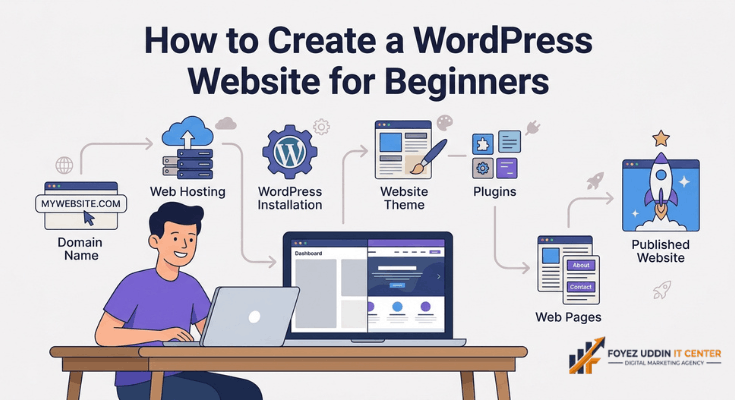
Have you ever wanted your own website but felt too scared to try? Thousands of beginners search for how to create a WordPress website every single day, and most of them have zero technical experience.
The good news is that WordPress makes this easier than you think. You don’t need to write code. You don’t need a computer science degree. You just need a clear plan and a little patience.
In this guide, you will learn everything step by step. We will cover domains, hosting, installation, themes, plugins, and even basic SEO. By the end, you will know exactly how to build a real website that looks professional.
Let’s get started.
What You Need Before You Create a WordPress Website
Before you dive in, you need two basic things: a domain name and web hosting. Think of the domain as your website’s address. Think of hosting as the land your house sits on.
Domain Name
A domain name is what people type into their browser to find you. For example, “yourbusiness.com” is a domain name. It should be short, easy to spell, and easy to remember.
Web Hosting
Web hosting is a service that stores your website files and makes them available online. Without hosting, your site cannot exist on the internet. Every website, big or small, needs a host.
Recommended Beginner-Friendly Hosts
Here are three hosting companies that are great for beginners:
- Bluehost: Simple setup, official WordPress partner, great for first-timers.
- SiteGround: Fast loading speeds and excellent customer support.
- Hostinger: Budget-friendly plans with solid performance.
Estimated Costs
A domain name usually costs $10 to $15 per year. Hosting plans start around $2.95 to $7.99 per month for beginners. Many hosts even offer a free domain for your first year.
How to Create a WordPress Website Step by Step
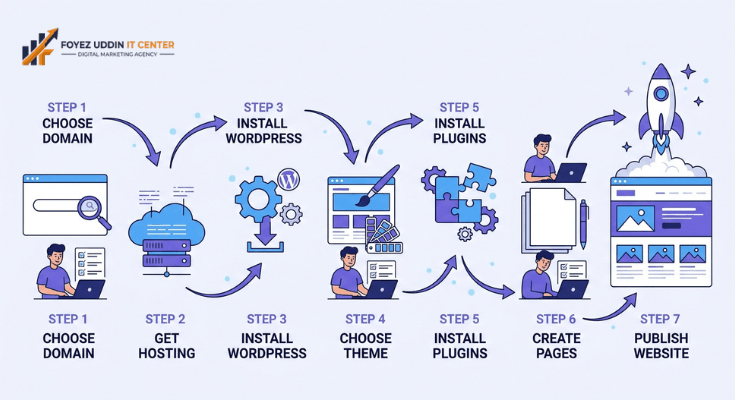
Now let’s walk through the exact process. Follow these steps in order and you will have a live website by the end.
Step 1: Choose and Buy Your Domain Name
Pick a name that reflects your brand or topic. Keep it under three words if possible. Avoid numbers, hyphens, and hard-to-spell words.
Once you pick a name, buy it through your hosting company or a domain registrar. Most beginner hosts, like Bluehost, let you register a domain during checkout. This saves you time and often costs less.
Step 2: Set Up Web Hosting
Choose a hosting plan that fits your budget. Beginners usually start with a shared hosting plan. It’s the cheapest option and works fine for small websites.
Sign up, enter your billing details, and connect your domain name. Most hosts complete this setup automatically. You’ll receive a confirmation email once your account is active.
Step 3: Install WordPress
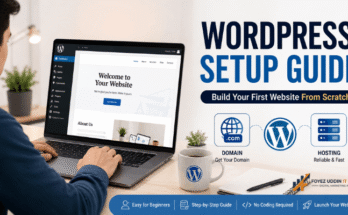
Most hosting providers offer a one-click WordPress installer. Log into your hosting dashboard, look for “Install WordPress,” and click it. The system installs everything for you in just a few minutes.
This step used to be complicated years ago. Today, it takes less time than making a cup of coffee.
Step 4: Choose a WordPress Theme
A theme controls how your website looks. Go to Appearance > Themes inside your WordPress dashboard. Browse the free options or search for premium themes online.
Pick something clean and simple for your first site. You can always change your theme later without losing your content.
Step 5: Install Essential Plugins
Plugins add extra features to your website. Go to Plugins > Add New and search for the tool you need. Click “Install,” then click “Activate.”
You don’t need dozens of plugins. Start with a handful of essential ones and add more later as your site grows.
Step 6: Create Your Key Pages
Every website needs a few core pages. These include Home, About, Services or Products, and Contact. Go to Pages > Add New to create each one.
Write simple, honest content that explains who you are and what you offer. Keep your sentences short and your message clear.
Step 7: Customize Your Website Design
Use the WordPress Customizer or a page builder plugin to adjust colors, fonts, and layout. Go to Appearance > Customize to explore your options.
Keep your design consistent across every page. Stick to two or three main colors for a professional look.
Step 8: Publish Your Website
Once you’re happy with your pages, it’s time to go live. Remove any “Coming Soon” settings under Settings > Reading. Click “Publish” on each page you’ve finished.
Congratulations, your website is now live for the world to see.
Best Plugins for a Beginner WordPress Website
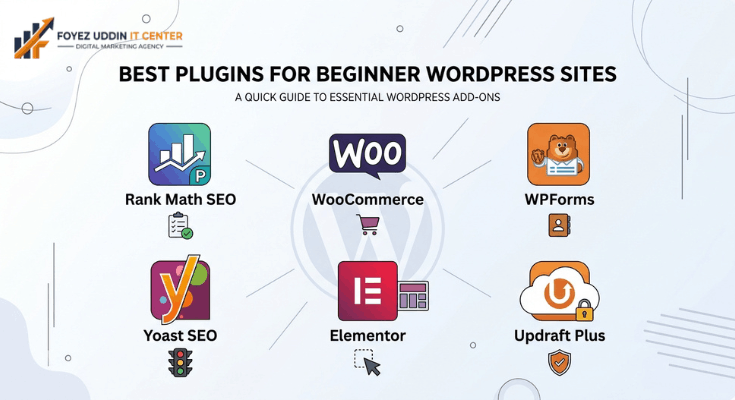
Choosing the right plugins makes a huge difference. Here are the most useful ones for beginners.
- Rank Math SEO: Helps you optimize content for search engines with clear checklists.
- WooCommerce: Turns your site into a full online store if you plan to sell products.
- WPForms: Lets you build contact forms without any coding.
- Yoast SEO: A popular alternative to Rank Math for on-page optimization.
- Elementor: A drag-and-drop page builder for custom designs.
- Updraft Plus: Backs up your website automatically, so you never lose your work.
Install only what you need at first. Too many plugins can slow your site down.
How to Create a WordPress Website That Ranks on Google
Building a website is only half the job. You also want people to find it. This section covers the basics of how to create a WordPress website that ranks well in search results.
Basic On-Page SEO Tips
Use your focus keyword in your title, first paragraph, and at least one subheading. Write clear, descriptive page titles. Add alt text to every image you upload.
How to Use the Rank Math Plugin
After installing Rank Math, enter your focus keyword for each page or post. The plugin gives you a live checklist and score. Follow its suggestions to improve your content step by step.
Importance of Focus Keywords
A focus keyword tells search engines what your page is about. Choose one that matches what your readers are actually searching for. Avoid stuffing it in awkwardly; natural writing always works better.
Internal and External Linking
Link to other pages on your own site whenever it’s relevant. Internal Link: Link to your “About Us” page. Also link out to trusted, authoritative sources when it adds value. External Link: Link to WordPress.org’s official documentation.
Good linking helps both readers and search engines understand your content.
Common Mistakes Beginners Make on WordPress
Even careful beginners slip up sometimes. Here are the most common mistakes and how to fix them.
- Choosing a slow, bloated theme. Fix: Pick a lightweight, well-reviewed theme instead.
- Installing too many plugins. Fix: Only keep plugins you actually use.
- Skipping backups. Fix: Install UpdraftPlus and schedule automatic backups.
- Ignoring mobile responsiveness. Fix: Preview every page on a phone before publishing.
- Using weak passwords. Fix: Create a strong, unique password for your dashboard login.
- Forgetting to update WordPress and plugins. Fix: Check for updates weekly.
- Publishing without proofreading. Fix: Read your content aloud before hitting publish.
Avoiding these mistakes will save you hours of frustration later. Most beginners learn these lessons the hard way; you don’t have to.
How Much Does It Cost to Create a WordPress Website
Understanding the real cost of how to create a WordPress website helps you plan your budget. Let’s break it down.
Free vs Paid Breakdown
WordPress software itself is completely free. However, you’ll still need a domain and hosting, which cost money. Premium themes, plugins, and page builders are optional extras.
Realistic Budget for Beginners
Expect to spend around $50 to $150 for your first year. This usually covers your domain, basic hosting, and maybe one premium plugin. As your site grows, you can reinvest in better tools and features.
Many successful websites started with this exact budget. You don’t need a huge investment to get going.
Conclusion
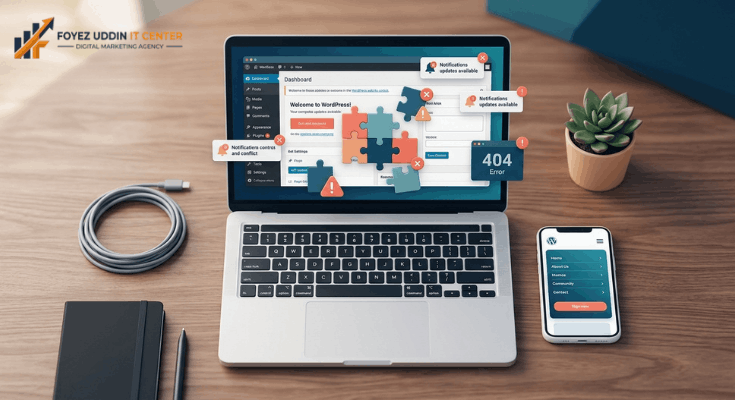
Learning how to create a WordPress website doesn’t have to feel overwhelming. Start with a domain and hosting plan. Install WordPress, pick a theme, add a few essential plugins, and build your key pages.
From there, focus on simple SEO habits and avoid the common mistakes beginners often make. Every professional website you admire online started exactly where you are right now.
Take the first step today. Register your domain, choose your hosting plan, and begin building the website you’ve always wanted.
Frequently Asked Questions
1. Is WordPress really free to use?
Yes, the WordPress software itself is 100% free to download and use. You only pay for hosting and a domain name, which are separate services. Some themes and plugins also have premium versions with extra features. For most beginners learning how to create a WordPress website, the free version covers everything you need to get started. You can always upgrade later as your site grows and your needs change.
2. How long does it take to build a WordPress site?
A simple website can be built in a single afternoon. If you’re following a clear guide, installing WordPress alone takes just a few minutes. Adding pages, choosing a theme, and customizing the design might take a few more hours. Most beginners finish their first working site within one day, especially when they know exactly what steps to follow beforehand.
3. Do I need coding skills to use WordPress?
No, you do not need any coding skills at all. WordPress is designed with beginners in mind, using simple menus and drag-and-drop tools. Page builders like Elementor make design even easier, with no code required. This is exactly why so many non-technical people successfully learn how to create a WordPress website without ever touching a single line of code.
4. Which hosting company is best for beginners?
Bluehost, SiteGround, and Hostinger are all excellent choices for beginners. Bluehost is officially recommended by WordPress and offers simple one-click installation. SiteGround is known for strong customer support and fast speeds. Hostinger tends to be the most budget-friendly option. All three make the process of building your first site much smoother.
5. Can I change my WordPress theme later?
Yes, you can switch themes at any time without losing your written content. Your pages, posts, and images stay saved in your WordPress database. Only the visual design changes when you activate a new theme. Many people experiment with a few themes before settling on their favorite. This flexibility is one of the best parts of learning how to create a WordPress website.
6. How much does a WordPress website really cost?
For most beginners, the first year costs between $50 and $150. This typically covers a domain name and a basic hosting plan. WordPress itself remains free throughout. Costs can rise if you add premium themes, advanced plugins, or professional design help, but none of that is required when you’re just starting out.
7. What is the difference between WordPress.com and WordPress.org?
WordPress.org is the free, self-hosted software most professionals recommend, giving you full control. WordPress.com is a hosted service with more limitations on customization and monetization. When people search for how to create a WordPress website for a business or blog, they usually mean the self-hosted WordPress.org version. It offers more flexibility and long-term growth potential.
8. Do I need an SSL certificate for my website?
Yes, an SSL certificate is essential for every modern website. It encrypts data between your site and your visitors, keeping information secure. It also helps with search engine rankings and builds trust with your audience. Most hosting providers, including Bluehost and SiteGround, offer a free SSL certificate with your hosting plan, so this step is usually simple.
9. Can I sell products on my WordPress website?
Yes, absolutely. By installing the WooCommerce plugin, you can turn any WordPress site into a fully functional online store. You can add products, accept payments, and manage orders directly from your dashboard. Many beginners specifically learn how to create a WordPress website because they want to start selling products or services online.
10. What should I do after my website goes live?
After publishing, focus on adding fresh content regularly and promoting your site on social media. Set up Google Analytics to track your visitors and their behavior. Keep your plugins, themes, and WordPress version updated for security. Continue applying basic SEO practices so more people can discover your site over time.

4 Comments on “How to Create a WordPress Website: Beginner’s Guide 2026”