
Building an app can feel exciting. However, that excitement often stops when a red error screen appears out of nowhere.
If you have ever seen a strange error message in Flutter, you are not alone. Common Flutter rendering errors happen to beginners and experts alike.
This guide breaks everything down in plain language. You do not need coding experience to follow along. We will explain what these common Flutter rendering errors mean, why they happen, and how to fix them quickly.
You will also learn how Flutter builds a screen behind the scenes. This context makes every error message easier to understand.
By the end, you will feel more confident troubleshooting your app. Let’s get started.
What Is Flutter, and Why Do Rendering Errors Happen?
Flutter is a tool developers use to build apps and websites. It uses a system called “widgets” to build every part of the screen.
Think of widgets like building blocks. Each block controls a piece of your app’s design.
A button is a widget. A text label is a widget. Even the entire screen is technically one large widget made of smaller widgets.
However, sometimes these blocks do not fit together correctly. When that happens, Flutter shows one of many common Flutter rendering errors.
A rendering error simply means the app does not know how to draw something on the screen. Therefore, it stops and shows a warning instead of crashing silently.
This is actually helpful. It tells you exactly where the problem is.
Without this warning, your app might show a blank screen with no explanation at all. Therefore, the red error box is doing you a favor.
Why Beginners Struggle With These Errors
Non-technical users often panic when they see a red screen. The messages look technical and confusing.
For example, terms like “RenderFlex overflowed” or “constraints” sound intimidating. However, once explained, they are quite simple.
Most rendering errors fall into a few common categories. In fact, nearly all common Flutter rendering errors trace back to just a handful of root causes. Once you learn these categories, fixing them becomes much easier.
Additionally, many beginners assume an error means their entire project is broken. That is rarely true. In most cases, only one small widget needs adjusting.
Once you see the same error a few times, it stops feeling scary. Instead, it becomes a familiar pattern you already know how to solve.
How Flutter Builds a Screen Behind the Scenes
It helps to understand what Flutter is doing before an error appears. This context makes troubleshooting much less mysterious, and it explains why common Flutter rendering errors tend to repeat.
- Flutter builds every screen in three main stages.
- Build stage: Flutter decides which widgets should appear.
- Layout stage: Flutter measures how much space each widget needs.
- Paint stage: Flutter draws everything onto the screen.
Most rendering errors happen during the layout stage. This is when Flutter asks each widget, “How big are you, and how much space do you have?”
If a widget cannot answer that question clearly, Flutter gets confused. Therefore, it stops and shows an error instead of guessing.
Understanding this three-stage process makes error messages feel far less random. Instead, you can usually guess which stage caused the problem.
How to Read a Flutter Error Message
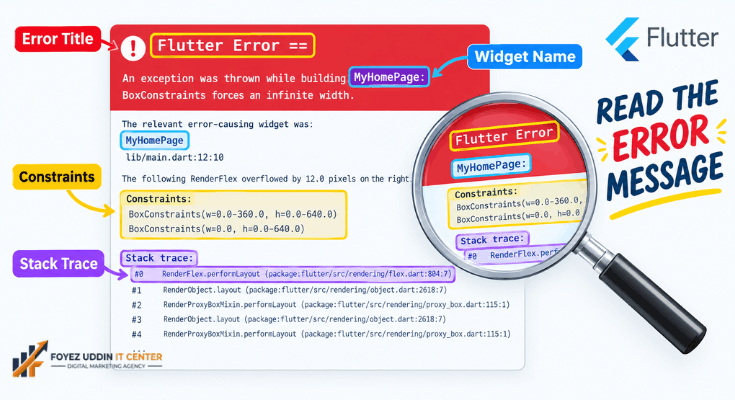
Before fixing anything, it helps to understand what you are looking at. Flutter error screens look messy at first. However, they follow a predictable pattern, and learning it makes common Flutter rendering errors far less intimidating.
Near the top, you will usually see a short summary line. This tells you the type of problem in plain words.
Below that, Flutter often names the exact widget involved. For example, it might say “A RenderFlex overflowed by 42 pixels.”
Further down, you will find a stack trace. This lists the files and lines where the issue started.
You do not need to read every line. Instead, focus on the first few lines. They almost always point you to the real cause.
Additionally, look for the word “constraints.” This word appears often and refers to size limits Flutter uses for layout.
Once you understand this pattern, error messages feel far less intimidating. They become a helpful map instead of a wall of confusing text.
Common Flutter Rendering Errors and How to Fix Them
Below are the most frequent rendering errors beginners encounter. Each one includes a simple explanation and fix.
RenderFlex Overflowed Error
This is one of the most frequent common Flutter rendering errors in daily development. It usually means content is too big for its container.
You will often see yellow and black striped markings on the screen. This visual pattern is Flutter’s way of highlighting the overflow area.
Why it happens:
- Text is too long for the available space.
- Images are larger than their parent container.
- Multiple widgets are squeezed into a small row or column.
How to fix it:
- Wrap the widget in an expanded or flexible widget.
- Use SingleChildScrollView to allow scrolling.
- Reduce font size or image size where needed.
This error looks scary. However, it is usually a quick fix.
Vertical Viewport Was Given Unbounded Height
This error confuses many beginners, and it’s one of the common Flutter rendering errors tied to scrollable widgets. It happens when a list or column does not know how tall it should be.
Why it happens:
- A ListView is placed inside another scrollable widget without limits.
- The parent widget has no defined height.
How to fix it:
- Wrap the ListView in a SizedBox with a fixed height.
- Use shrinkWrap: true to let the list size itself automatically.
Therefore, always define space boundaries when nesting scrollable widgets.
setState Called After Dispose
This rendering error appears when the app tries to update a screen that no longer exists. Among common Flutter rendering errors, this one relates to app lifecycle rather than layout.
Why it happens:
- A background task finishes after the user leaves the page.
- The app tries to refresh a widget that was already removed.
How to fix it:
- Check if (mounted) before calling setState.
- Cancel background tasks when the page closes.
This keeps your app stable and prevents crashes.
Null Check Operator Used on a Null Value
This error happens when the app expects a value but finds nothing instead. It’s one of the common Flutter rendering errors that actually comes from data, not layout.
Why it happens:
- Data has not finished loading yet.
- A variable was never properly set.
How to fix it:
- Add a loading indicator while data loads.
- Use safe defaults instead of assuming data always exists.
For example, show “Loading…” until the real content is ready.
Incorrect Use of Rows and Columns
Beginners often place too many widgets inside a row or column without guidance. This is a classic source of common Flutter rendering errors for new developers.
Why it happens:
- No expanded widgets are used to share space.
- Widgets try to take unlimited width or height.
How to fix it:
- Use Expanded or Flexible to divide space evenly.
- Test your layout on different screen sizes.
This prevents overflow and keeps designs responsive.
RenderBox Was Not Laid Out
This error means a widget tried to paint itself before Flutter measured it. It sounds technical, but like most common Flutter rendering errors, the cause is usually simple.
Why it happens:
- A custom widget skips the normal layout process.
- A widget is accessed before the layout stage finishes.
How to fix it:
- Avoid reading a widget’s size before it has been built.
- Use standard layout widgets instead of custom render objects when possible.
For most beginners, this error is rare. However, it becomes more common when experimenting with animations.
Duplicate GlobalKey Detected
This error appears when two widgets share the same unique identifier. Flutter uses these identifiers to track widgets across rebuilds, and mismanaging them is a frequent cause of common Flutter rendering errors.
Why it happens:
- A global key is reused inside a loop.
- The same key is assigned to two different widgets by mistake.
How to fix it:
- Generate a unique key for each item, especially inside lists.
- Avoid hardcoding the same key value more than once.
This error is easy to prevent once you understand what GlobalKeys are for.
No Directionality Widget Found
This error happens when Flutter cannot determine text direction, such as left-to-right or right-to-left. It is one of the less common Flutter rendering errors, but it still trips up beginners.
Why it happens:
- A widget that needs direction information is used outside of MaterialApp or WidgetsApp.
- A custom widget tree skips essential wrapper widgets.
How to fix it:
- Make sure your widget sits inside a MaterialApp or Directionality widget.
- Avoid testing individual widgets completely outside the app structure.
This error is uncommon. However, it often confuses beginners because the message sounds unrelated to layout.
A Simple Troubleshooting Checklist
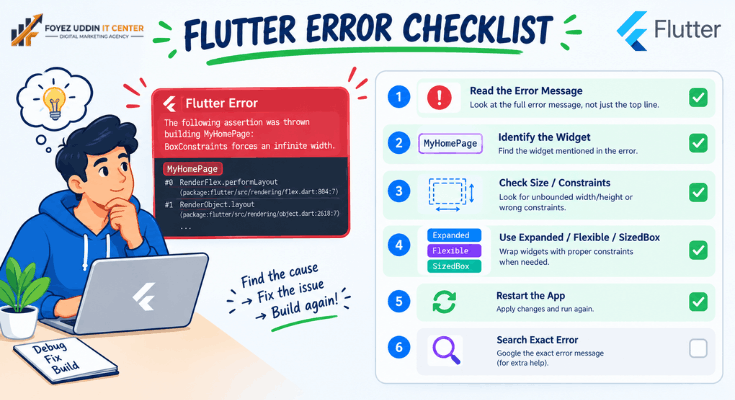
When you see any rendering error, follow these steps in order. This process works for almost every one of the common Flutter rendering errors you’ll encounter.
- Read the first two lines of the error message carefully.
- Identify which widget is named in the message.
- Check if that widget is missing a size limit or a wrapper widget.
- Try wrapping the widget in Expanded, Flexible, or SizedBox.
- Restart the app completely, not just hot reload, if the error persists.
- Search for the exact error title if you are still unsure.
This checklist turns a stressful moment into a simple, repeatable process.
Tools That Help You Catch Rendering Errors Early
You do not have to rely only on trial and error. Flutter includes tools that make debugging much easier and help you catch common Flutter rendering errors before they reach real users.
- Flutter Inspector: Shows your widget tree visually, so you can see how everything is nested.
- Hot reload: Lets you test small changes instantly without restarting the whole app.
- Debug console: Displays detailed error messages and stack traces.
- Layout Explorer: Highlights spacing and sizing issues directly on the widget tree.
Using these tools regularly helps you catch problems before they become confusing. Therefore, testing often is always better than testing once at the end.
General Tips to Avoid Flutter Rendering Errors
Prevention is easier than fixing. Building a few simple habits helps you avoid common Flutter rendering errors before they even start.
- Always test layouts on multiple screen sizes.
- Use scrollable widgets when content might grow.
- Avoid nesting scrollable widgets without height limits.
- Read error messages carefully. They usually explain the exact problem.
- Restart your app after major layout changes.
- Keep your widget tree organized and avoid excessive nesting.
These habits reduce future issues significantly. Therefore, your development process becomes smoother over time.
What To Do When You Are Still Stuck
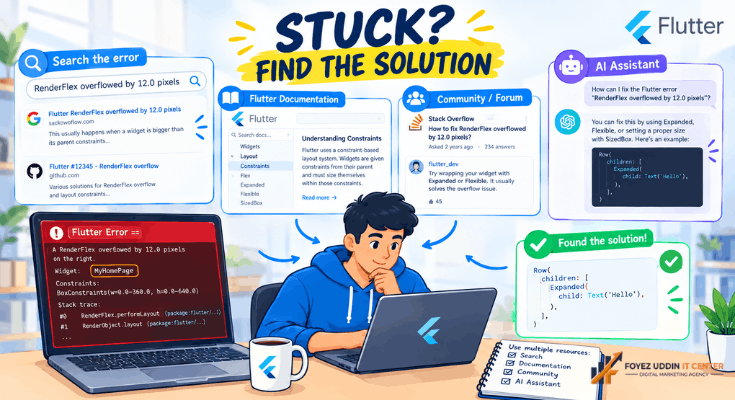
Sometimes an error does not match anything listed above. In that case, do not panic.
First, copy the exact error message. Then, search for it directly, since many developers share solutions for common Flutter rendering errors online.
Additionally, community forums and official documentation are excellent resources. Beginners often find quick answers there.
If you are building your project with the help of a no-code or AI-assisted tool, you can also paste the error message directly into that tool. This often gives immediate, simplified explanations.
Finally, remember that debugging is a normal part of building software. Even experienced developers spend significant time reading error messages. Therefore, patience matters more than perfection.
Final Thoughts on Fixing These Flutter Errors
Rendering errors are a normal part of building apps. They are not a sign of failure.
Instead, they act as helpful signals. They show you exactly where to make improvements.
By understanding these common Flutter rendering errors, you gain more control over your project. You also save time and reduce frustration.
Keep practicing, stay patient, and read error messages closely. Over time, fixing these issues will feel completely natural.
Frequently Asked Questions
Are Flutter rendering errors dangerous?
No. Most common Flutter rendering errors are warnings, not permanent damage. They simply mean something needs adjusting.
Can beginners really fix these errors without coding experience?
Yes. Many fixes involve wrapping widgets differently. This requires pattern recognition, not deep coding knowledge.
Why do these errors happen so often?
Flutter is very strict about layout rules. Therefore, it catches mistakes early instead of showing a broken screen, which is why common Flutter rendering errors appear so frequently.
Will a rendering error crash my entire app?
Usually not. Most rendering errors only affect the widget that caused them. However, the rest of the app typically keeps running.
Do these errors mean my code is broken?
No. They often mean a layout rule was broken, not the logic itself. For example, a widget may simply need more space or a size limit.
How can I find the exact widget causing the error?
Check the red error box on screen. It usually names the widget and file location. Additionally, the debug console shows a detailed stack trace.
Is it normal to see these errors while learning Flutter?
Yes, completely normal. Even experienced developers encounter common Flutter rendering errors regularly. Therefore, do not feel discouraged when one appears.
What is the fastest way to prevent future rendering errors?
Test your layout often, especially after adding new widgets. Small, frequent checks catch problems early. This saves time compared to debugging a large layout all at once.
Should I restart my app after every small change?
Not always. Hot reload works for most small edits. However, restart completely after major layout or state changes to avoid confusing leftover errors.
Where can I learn more about Flutter layout rules?
Flutter’s official documentation covers layout concepts in depth. Practicing with small test projects also builds intuition quickly over time.