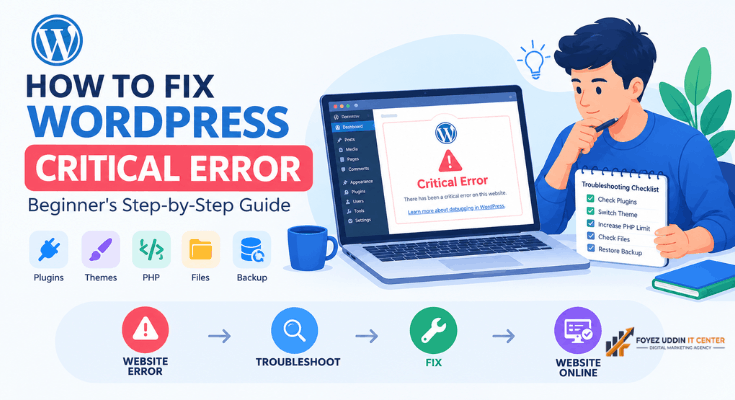
You just opened your website. Instead of your homepage, you see a scary message. It says, “There has been a critical error on this website.”
Your heart drops. Your business site is down. Your blog is invisible to readers.
Take a breath. Learning how to fix WordPress critical error issues is easier than it looks. This guide walks you through every solution, step by step. No coding skills required.
Thousands of website owners face this exact problem every day. However, most fix it within minutes once they know where to look. Let’s get your site back online.
In this guide, you’ll learn how to fix WordPress critical error messages using eight proven methods. Each method is beginner-friendly. None require a developer or expensive support ticket.
Whether you run a blog, a small business site, or an online store, this guide applies to you. Let’s start troubleshooting.
What Is a WordPress Critical Error?
A WordPress critical error happens when something breaks your site’s core functionality. Your site cannot load properly. Therefore, WordPress shows a generic error message to protect you from seeing confusing code.
This error replaced the old “White Screen of Death.” WordPress introduced it in version 5.2. The goal was simple: give site owners more useful information.
Unfortunately, the message itself still doesn’t explain the actual cause. That’s where this guide comes in.
Many beginners panic the moment they see this message. However, knowing how to fix WordPress critical error issues turns panic into a simple checklist. You’ll work through it calmly, one step at a time.
Common Causes of the WordPress Critical Error
Understanding the cause helps you pick the right fix. Here are the most frequent culprits:
- A faulty plugin that conflicts with your theme or WordPress core
- A broken theme with coding errors or outdated files
- PHP memory limit issues on your hosting server
- Corrupted core WordPress files from an incomplete update
- Incompatible PHP version running on your server
- A recent WordPress update that clashed with existing plugins
For example, installing two SEO plugins at once often triggers this exact error. Knowing this narrows your troubleshooting significantly.
Identifying the root cause is the first real step toward learning how to fix WordPress critical error problems for good. Once you know the likely cause, you can jump straight to the matching solution below.
Step 1: Check Your Email for Error Details
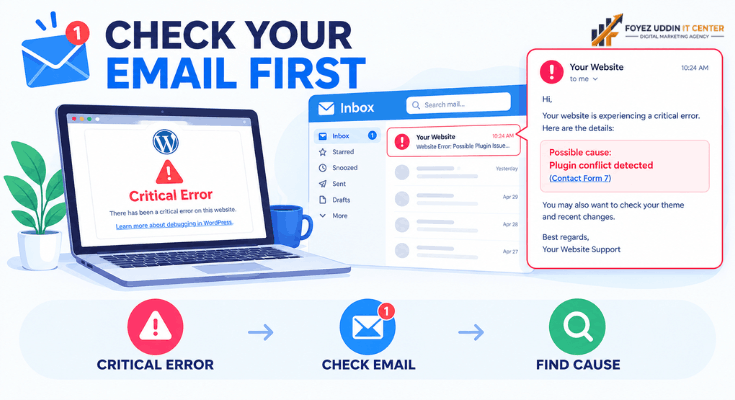
WordPress often sends an email when a critical error occurs. Check the inbox linked to your site’s admin account.
This email usually names the exact plugin or theme causing trouble. Therefore, this is always your first step.
If you find the email, skip ahead to the plugin or theme sections below. If not, continue with this guide.
This small step saves significant time. Therefore, it’s always worth checking before diving into deeper technical fixes.
Step 2: Enable Debugging Mode
Debugging mode reveals the specific error hiding behind the generic message. You’ll need access to your website files through an FTP client or your hosting file manager.
Here’s how to enable it:
- Locate the wp-config.php file in your website’s root folder
- Open it using a text editor
- Find the line that says define(‘WP_DEBUG’, false);
- Change false to true
- Save the file and reload your website
Your site will now display a detailed error message. This message often names the exact file causing the problem.
However, remember to turn debugging back off once you’ve fixed the issue. Leaving it on exposes technical details to visitors.
Debugging mode is one of the fastest ways to learn how to fix WordPress critical error messages accurately. It tells you exactly which file or function triggered the problem.
Step 3: Deactivate All Plugins
Plugin conflicts cause most critical errors. Deactivating them is a fast, reliable fix.
Via FTP or File Manager:
- Navigate to wp-content
- Find the folder named plugins
- Rename it to plugins-deactivated
- Try loading your website again
If your site loads, a plugin was the problem. Rename the folder back to plugins. Then reactivate each plugin individually until the error returns.
This process identifies the exact troublemaker. For example, if your site breaks after reactivating “Plugin X,” you’ve found your culprit.
Delete or update that specific plugin. Your site should now run normally.
Plugin conflicts remain the single most common reason people search for how to fix WordPress critical error solutions online. Therefore, this step alone resolves the majority of cases.
Step 4: Switch to a Default WordPress Theme
Sometimes the theme itself is broken, not a plugin. Testing this takes just a few minutes.
- Access your site files via FTP or file manager
- Go to wp-content/themes
- Rename your active theme’s folder
- WordPress automatically switches to a default theme like Twenty Twenty-Four
If this fixes your critical error, your original theme has a coding issue. Contact the theme developer or consider switching themes permanently.
Theme conflicts are less common than plugin issues. However, they’re just as important to rule out when troubleshooting how to fix WordPress critical error situations.
Step 5: Increase Your PHP Memory Limit
Low memory limits often trigger critical errors, especially on shared hosting plans. Fortunately, increasing this limit is simple.
Edit your wp-config.php file:
Add this line before “That’s all, stop editing!” comment:
define(‘WP_MEMORY_LIMIT’, ‘256M’);
Save the file and refresh your site. This gives WordPress more room to breathe.
If this doesn’t help, contact your hosting provider. Ask them to increase your server’s PHP memory limit directly.
Memory limit issues are sneaky. They often appear after installing a resource-heavy plugin or theme, so this fix belongs in every how to fix WordPress critical error checklist.
Step 6: Re-upload WordPress Core Files
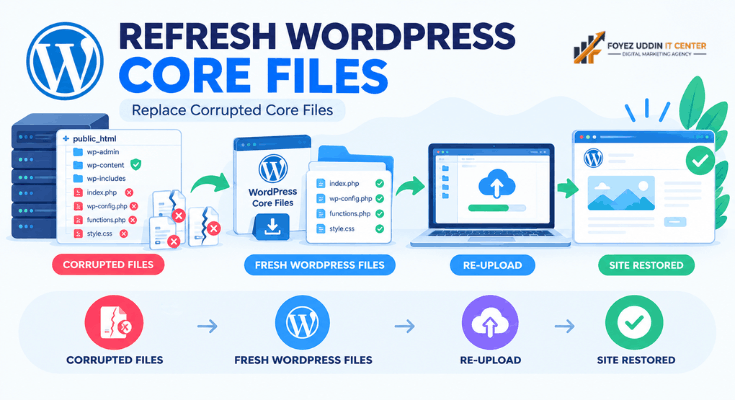
Corrupted core files sometimes cause critical errors after a failed update. Re-uploading fresh files solves this without touching your content.
- Download the latest WordPress version from WordPress.org
- Extract the ZIP file on your computer
- Delete the wp-admin and wp-includes folders from the fresh download
- Upload the remaining files to your server, overwriting existing ones
Important: Never overwrite your wp-content folder. That’s where your themes, plugins, and images live.
This process refreshes your core files without deleting your data. Your posts, pages, and media remain untouched.
Corrupted files are rare. However, they’re worth checking if earlier steps in this how-to-fix-WordPress-critical-error guide haven’t worked yet.
Step 7: Check Your PHP Version
Outdated or incompatible PHP versions frequently cause critical errors. WordPress recommends PHP 7.4 or higher.
Check your current version through your hosting control panel. Most hosts, including Bluehost and SiteGround, offer a simple PHP version selector.
Update to a recommended version if yours is outdated. However, always back up your site first. Some plugins may not support the newest PHP versions yet.
An outdated PHP version quietly causes many critical errors. Checking it should be a standard part of any how-to-fix-WordPress-critical-error routine.
Step 8: Restore From a Backup
If nothing above works, restoring a recent backup is your safety net. This is why backups matter so much for every website owner.
Most hosting providers offer one-click restore options. Popular backup plugins like UpdraftPlus also simplify this process significantly.
Restoring undoes recent changes that likely caused the error. Therefore, this should be your final option, not your first move.
A solid backup routine makes learning how to fix WordPress critical error problems almost stress-free. You’ll always have a safety net waiting.
How to Prevent Future Critical Errors
Prevention saves you time and stress down the road. Consider these best practices:
- Update one plugin at a time, not all at once
- Always create a backup before making changes
- Test updates on a staging site if your host offers one
- Keep your theme and plugins from trusted developers only
- Monitor your PHP version and keep it current
- Limit the number of active plugins on your site
Following these habits significantly reduces future risk. Your site stays stable, and your visitors stay happy.
When to Call a Professional
Some situations require expert help. For example, if you’re not comfortable using FTP, don’t attempt file edits alone.
A WordPress developer can diagnose issues quickly. Many freelance platforms offer affordable, one-time fixes for beginners.
There’s no shame in asking for help. Your website’s uptime matters more than doing everything yourself.
Conclusion
Learning how to fix WordPress critical error messages doesn’t require advanced technical skills. Most issues stem from plugins, themes, or memory limits.
Start with the easiest fixes first. Deactivate plugins, switch themes, and check your PHP settings. Therefore, you’ll likely solve the problem within your first few attempts.
If all else fails, restore a backup or contact a professional. Either way, your website will be back online soon.
Tools That Make Fixing WordPress Errors Easier
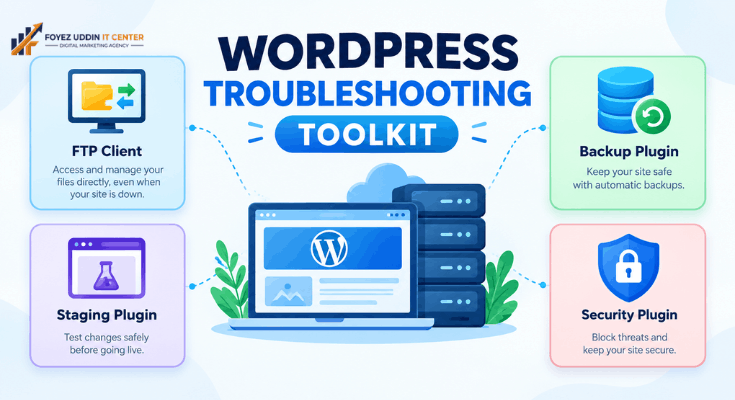
You don’t need advanced software to troubleshoot your site. However, a few tools make the process faster and safer.
Consider using these:
- An FTP client like FileZilla for accessing your site files
- A staging plugin like WP Staging to test changes safely
- A backup plugin like UpdraftPlus or Duplicator
- A security plugin like Wordfence to rule out malware-related errors
These tools turn a stressful troubleshooting session into a manageable task. For example, a staging site lets you test fixes without risking your live site.
Many hosting companies also offer built-in staging environments. Check your hosting dashboard before installing a new plugin.
Real-World Example: A Small Business Recovery Story
Imagine a small bakery owner named Sarah. She updated a plugin during a busy morning. Her site immediately crashed with a critical error.
Sarah didn’t know any code. However, she followed a simple checklist similar to this one.
First, she checked her email and found no helpful message. Next, she deactivated all her plugins through her hosting file manager.
Her site loaded instantly. Therefore, she knew a plugin caused the issue.
She reactivated each plugin one by one. The error returned after activating her image compression tool. She deleted it and installed a different one instead.
Within fifteen minutes, her bakery site was back online. This story shows that learning how to fix WordPress critical error issues doesn’t require technical expertise, just patience and a clear process.
Frequently Asked Questions
1. What does “critical error” mean on WordPress?
It means WordPress detected a fatal problem preventing your site from loading. The cause is usually a plugin, theme, or server configuration issue.
2. Will fixing a critical error delete my content?
No. Most fixes, like deactivating plugins or switching themes, don’t affect your posts, pages, or media files.
3. How do I know which plugin caused the error?
Deactivate all plugins, then reactivate them one by one. The error returns when you reactivate the problematic plugin.
4. Can a critical error happen after a WordPress update?
Yes. Updates sometimes conflict with outdated plugins or themes. Always back up before updating.
5. Is it safe to edit wp-config.php myself?
Yes, as long as you’re careful. Always create a backup copy of the file before making any edits.
6. How long does it typically take to fix this error?
Most fixes take between five and thirty minutes. Complex cases involving corrupted files may take longer.
7. Do I need coding knowledge to fix this?
No. Every solution in this guide uses simple file management or copy-paste code snippets.
8. What if my hosting provider caused the error?
Contact their support team directly. Server-side issues like memory limits often require their assistance.