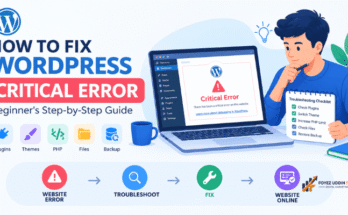
Losing your website overnight sounds scary. It happens more often than you think.
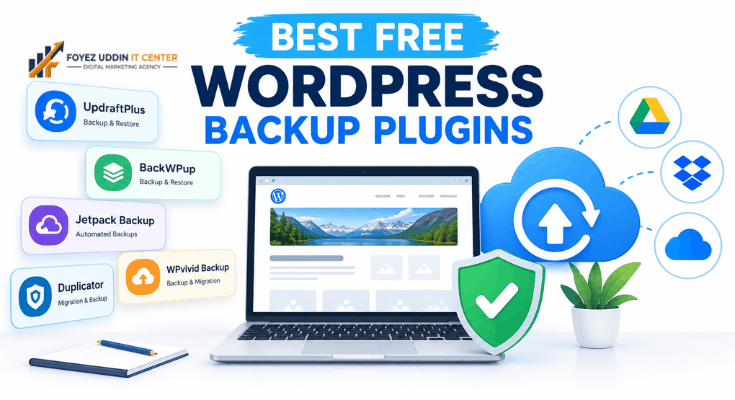
A hacker attack, a bad update, or a hosting error can wipe out months of work. That is why finding the best free WordPress backup plugins matters so much.
This guide is built for beginners. You do not need coding skills to follow along.
We tested several tools. We looked at ease of use, reliability, and storage options. Below, you will find our honest picks.
By the end, you will know exactly which plugin fits your needs. Let’s dive in.
Why You Need a WordPress Backup Plugin
Your website is not stored in one safe place. Therefore, things can go wrong fast.
Here are common risks every website owner faces:
- Hacking attempts that corrupt or delete files
- Plugin conflicts that crash your entire site
- Hosting server failures beyond your control
- Human error, like accidentally deleting a page
- Failed updates to WordPress core or themes
Without a backup, recovery can take days. Sometimes, it is not possible at all.
However, a good backup plugin fixes this problem. It creates copies of your site automatically. You can restore everything with a few clicks.
How We Tested These Plugins
We did not just read descriptions. We installed each plugin on a live test site.
Our testing focused on five key areas:
- Ease of setup for non-technical users
- Backup speed and file size handling
- Restoration process simplicity
- Cloud storage integration options
- Free plan limitations compared to paid versions
This approach ensures our recommendations are practical. They are not just theoretical.
The Best Free WordPress Backup Plugins Reviewed
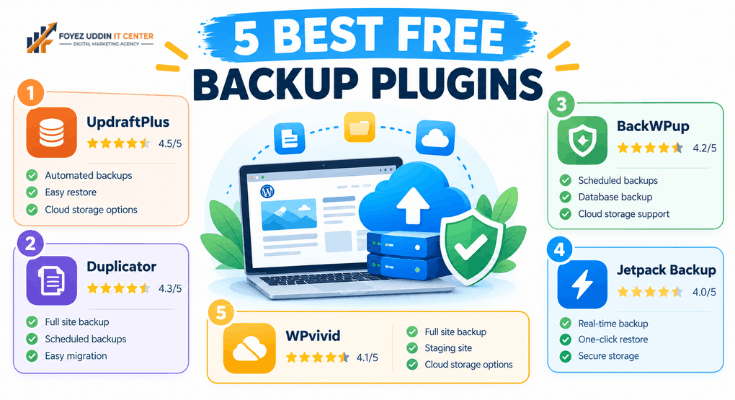
Below are our top picks. Each one earned its place through real testing.
1. UpdraftPlus
UpdraftPlus is one of the best free WordPress backup plugins available today. It has over three million active installs.
Setup takes less than five minutes. The interface uses plain language, not technical jargon.
Key features include:
- Scheduled automatic backups (daily, weekly, or monthly)
- Cloud storage support for Google Drive, Dropbox, and more
- One-click restoration process
- Database and file backups combined
However, the free version limits how many backups you can store. For most beginners, this is not a dealbreaker.
We restored a test site in under three minutes. That speed impressed our team.
2. Duplicator
Duplicator works differently from typical backup tools. It focuses on migration and cloning as well as backups.
This makes it ideal if you plan to move your site later. For example, switching hosting providers becomes much simpler.
Standout features:
- Full site packages bundled into one file
- Simple drag-and-drop restoration
- No technical database knowledge required
- Works well for site transfers
The free version does not include scheduled backups. Therefore, you must remember to run them manually.
Still, its cloning ability makes it a favorite among small business owners.
3. BackWPup
BackWPup offers flexibility that many beginners appreciate. You can back up your entire site or just specific parts.
Notable capabilities:
- Multiple storage destinations, including FTP and cloud services
- Customizable backup schedules
- Database optimization tools included
- XML export for content-only backups
The dashboard feels slightly more technical than UpdraftPlus. However, tooltips guide you through each step.
We found the setup process took about ten minutes. That is still manageable for non-tech-savvy users.
4. Jetpack Backup (Free Tier)
Jetpack is known for its all-in-one approach to WordPress management. Backup is just one feature among many.
Why beginners like it:
- Simple, unified dashboard
- Real-time activity log
- Integration with other Jetpack security tools
- Trusted brand backed by Automattic
The free tier offers limited backup frequency. For basic protection, though, it works reliably.
This plugin suits bloggers who want security and backups in one place.
5. WPvivid Backup Plugin
WPvivid has gained popularity recently. It combines simplicity with generous free-tier storage options.
Core strengths:
- Unlimited local backups on the free plan
- Cloud integration with multiple providers
- Staging site creation feature
- Clean, modern interface
We tested the restoration feature twice. Both times, it completed without errors.
WPvivid is a strong choice for small business owners who want more control without complexity.
Comparison Table: Best Free WordPress Backup Plugins
| Plugin | Best For | Cloud Storage | Scheduled Backups |
| UpdraftPlus | Overall beginners | Yes | Yes |
| Duplicator | Site migration | No (manual export) | No |
| BackWPup | Flexible customization | Yes | Yes |
| Jetpack Backup | All-in-one security | Yes | Limited |
| WPvivid | Generous free storage | Yes | Yes |
This table makes comparison quick and easy. Choose based on what matters most to you.
How to Choose the Right Backup Plugin
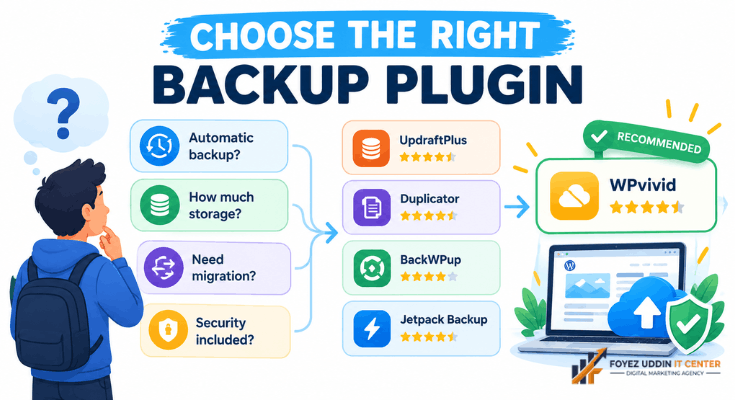
Selecting a plugin depends on your specific goals. Consider these factors first.
Ask yourself these questions:
- Do you need automatic scheduling, or is manual backup enough?
- How much storage space do you actually require?
- Are you planning to migrate your site soon?
- Do you want backup features bundled with security tools?
For most beginners, UpdraftPlus remains the safest starting point. It balances simplicity with strong features.
However, if migration is your priority, Duplicator makes more sense. Match the tool to your actual needs.
Step-by-Step: Setting Up Your First Backup Plugin
Getting started is simpler than most people expect. Follow these steps carefully.
- Log into your WordPress dashboard.
- Navigate to Plugins > Add New.
- Search for your chosen backup plugin by name.
- Click Install Now, then Activate.
- Open the plugin settings from your sidebar menu.
- Choose your backup schedule and storage destination.
- Run your first manual backup to confirm everything works.
This entire process takes fifteen minutes or less. Therefore, there is no excuse to skip it.
Common Mistakes Beginners Make With Backups
Even with the right plugin, mistakes happen. Avoid these common pitfalls.
- Storing backups only on the same server as your website
- Forgetting to test restoration before an emergency happens
- Ignoring backup notifications about failed processes
- Using outdated plugin versions that create compatibility issues
For example, storing backups locally means losing everything if your host crashes. Always connect an external cloud storage option.
Testing your restoration process matters just as much as creating backups. A backup you cannot restore is useless.
Why Free Plugins Work Well for Beginners
Many new website owners worry that free tools are not reliable. However, this is often untrue.
The best free WordPress backup plugins offer enough features for most small sites. Paid upgrades mainly add extra storage or advanced scheduling.
Therefore, starting free makes sense. You can always upgrade later as your site grows.
Small business owners especially benefit from this approach. It keeps early costs low while building safety habits.
Final Thoughts on the Best Free WordPress Backup Plugins
Protecting your website should never be optional. Disasters happen without warning.
Throughout our testing, UpdraftPlus stood out for overall ease and reliability. However, WPvivid and BackWPup offer excellent alternatives depending on your needs.
Ultimately, the best free WordPress backup plugins give you peace of mind. They ensure your hard work never disappears overnight.
Install one today. Your future self will thank you.
Frequently Asked Questions
What is the best free WordPress backup plugin overall?
UpdraftPlus is widely considered the best free WordPress backup plugin. It combines ease of use with reliable cloud storage integration.
How often should I back up my WordPress site?
Most experts recommend weekly backups for small sites. However, daily backups suit sites with frequent content updates.
Can free backup plugins restore my entire site?
Yes, most free plugins support full-site restoration. However, storage limits may affect how many backups you can keep.
Is it safe to store backups on my hosting server only?
No, this is risky. Always connect an external storage option, like Google Drive or Dropbox.
Do I need coding knowledge to use these plugins?
No coding knowledge is required. All plugins listed here use simple, beginner-friendly dashboards.
Are free WordPress backup plugins enough for small businesses?
Yes, in most cases. Free plans handle basic protection well, though larger sites may eventually need paid features.