
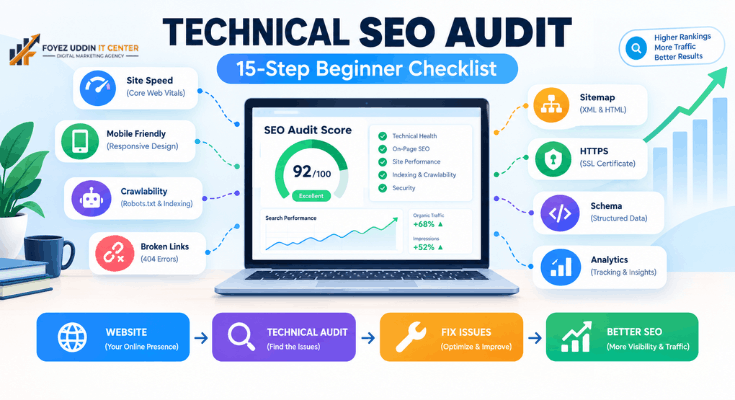
Want more traffic to your website? You need to learn how to do a technical SEO audit manually. It sounds scary. It isn’t.
This guide breaks it down into simple, no-code steps. You don’t need to be a developer. You just need patience and this checklist.
By the end, you’ll know exactly how to check your site’s health. Let’s get started.
What Is a Technical SEO Audit?
A technical SEO audit checks how well search engines can crawl and understand your website. It looks at speed, structure, mobile-friendliness, and errors.
Think of it like a health checkup for your site. However, instead of a doctor, you use free tools and a bit of common sense.
Doing this manually means you don’t rely on expensive software. You inspect things yourself, one by one.
Why Beginners Should Learn This Skill

Many small business owners hire agencies for this work. That’s expensive. Therefore, learning to do a technical SEO audit manually saves you money.
It also helps you understand your own website better. For example, you’ll know why a page isn’t ranking. You won’t need to guess anymore.
Step 1: Check If Your Site Is Indexed by Google
First, find out if Google even knows your site exists. This is the foundation of any technical SEO audit manually performed.
- Open Google
- Type: site:yourdomain.com
- Review the results
If pages are missing, that’s a red flag. However, don’t panic yet. This just means you have work to do.
Step 2: Test Your Website’s Loading Speed
Speed matters a lot in every technical SEO audit manually completed. Slow sites lose visitors and rankings.
Use Google PageSpeed Insights. It’s free and requires zero coding knowledge.
- Enter your website URL
- Click “Analyze.”
- Review your Core Web Vitals score
A good score is green. A red score means visitors are leaving before your page loads. For example, a 5-second load time can cut conversions dramatically.
Step 3: Check Mobile-Friendliness
Most people browse on phones now. Therefore, your site must work perfectly on mobile before you finish a technical SEO audit manually.
Google offers a free mobile-friendly test tool. Simply paste your URL and press enter.
If your site fails, common causes include:
- Text that’s too small
- Buttons placed too close together
- Content wider than the screen
Fixing these issues often requires just a template or theme change. No coding needed.
Step 4: Review Your Site’s Crawlability
Search engines use “crawlers” to scan your site. If they get blocked, your pages won’t rank, which is why crawlability sits at the center of any technical SEO audit manually.
Check your robots.txt file. Type this into your browser: yourdomain.com/robots.txt
Look for lines like “Disallow: /”. This line blocks crawlers from that entire section. However, this file should only block private or duplicate pages, not your main content.
Step 5: Find and Fix Broken Links
Broken links frustrate visitors. They also hurt your SEO credibility, so this step is never skipped during a technical SEO audit manually.
Use a free tool like Broken Link Checker or Ahrefs Webmaster Tools. Scan your entire site.
Once you find broken links, you have two choices:
- Update the link to the correct page
- Remove the link completely
Do this regularly. Websites naturally accumulate broken links over time.
Step 6: Check for Duplicate Content
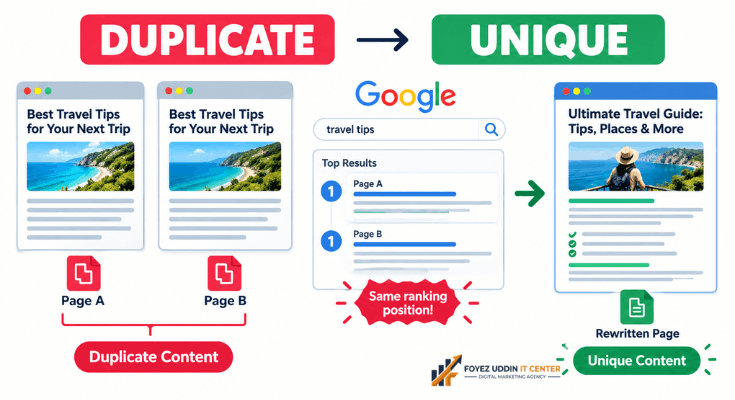
Duplicate content confuses search engines. It doesn’t know which page to rank, and catching this early is a core goal of a technical SEO audit manually.
Use Google Search Console to spot duplicate title tags or descriptions. Look under the “Coverage” report.
For example, if two blog posts have identical titles, that’s a problem. Rewrite one to be unique and specific.
Step 7: Inspect Your XML Sitemap
Your sitemap acts like a roadmap for search engines. Without it, some pages might get missed, so a technical SEO audit manually always includes a sitemap check.
Check yours by visiting: yourdomain.com/sitemap.xml
Make sure it includes all your important pages. Therefore, remove any old or deleted pages from this list too.
If you don’t have one, most website builders create it automatically. WordPress users can use a free plugin like Yoast or Rank Math.
Step 8: Review Your URL Structure
Clean URLs help both users and search engines. Messy URLs confuse everyone, and fixing them is a simple win in any technical SEO audit manually.
Good example: yourdomain.com/blog/seo-audit-guide
Bad example: yourdomain.com/page?id=48291&cat=3
If your URLs look messy, most website platforms let you edit them easily. No code required.
Step 9: Check for HTTPS Security
Google favors secure websites. If your site shows “Not Secure” in the browser bar, that’s a serious issue, and no technical SEO audit manually is complete without checking it.
Check for a small padlock icon next to your URL. If it’s missing, contact your hosting provider. They can install an SSL certificate for you, often for free.
Step 10: Analyze Header Tag Structure
Header tags (H1, H2, H3) organize your content. They help both readers and search engines.
Each page should have exactly one H1. Then, use H2s for main sections and H3s for subsections.
For example, this article uses one H1, several H2s, and no confusing overlaps. That structure keeps things scannable.
Step 11: Check Canonical Tags
Canonical tags tell Google which version of a page is the “main” one. Without them, duplicate versions can compete against each other, which is why canonicals appear in a thorough technical SEO audit manually.
For example, yourdomain.com/shoes and yourdomain.com/shoes?color=red might show the same content. A canonical tag tells Google to rank only the first one.
Most website builders like WordPress, Wix, and Shopify add canonical tags automatically. However, it’s still worth checking manually.
- Right-click any page
- Select “View Page Source.”
- Search for rel=”canonical”
If it points to a different, unrelated page, that’s a mistake. Fix it through your SEO plugin settings.
Step 12: Check for Redirect Chains
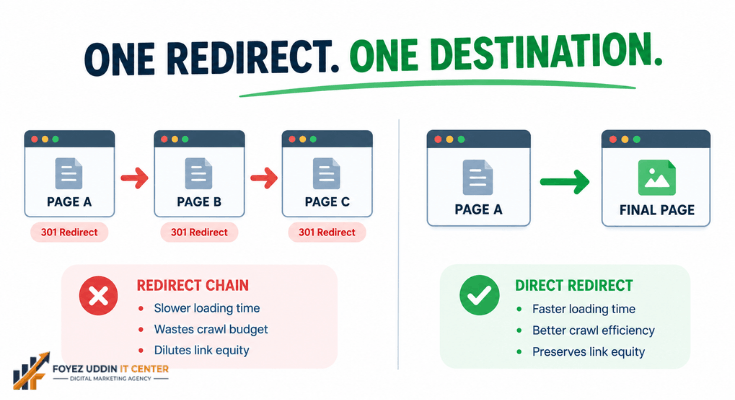
A redirect chain happens when one URL redirects to another, which redirects again. This slows down your site and confuses search engines.
For example, Page A redirects to Page B, which redirects to Page C. Google may give up before reaching the final page.
Use a free tool like Redirect Path (a browser extension) to check this. Ideally, every redirect should go directly to its final destination in one step.
Therefore, clean up old redirects every few months. This keeps your site fast and easy to crawl.
Step 13: Audit Your Images for SEO
Images affect both page speed and accessibility. Unoptimized images are one of the most common issues found during a technical SEO audit manually.
Check the following for each major image:
- File size: Should be under 200KB when possible
- Alt text: Should describe the image clearly
- File name: Should be descriptive, not “IMG_2049.jpg”
- Format: Modern formats like WebP load faster than JPG or PNG
For example, an image named “blue-running-shoes.webp” helps search engines understand context. A generic file name does not.
Step 14: Check Internal Linking Structure
Internal links help search engines discover your pages. They also keep visitors browsing longer, which makes linking a valuable part of a technical SEO audit manually.
Look at your most important pages. Do other pages on your site link to them? If not, add a few relevant links.
However, avoid linking randomly. Each internal link should make sense within the surrounding content.
- Link from high-traffic pages to important, underperforming pages
- Use descriptive anchor text instead of “click here.”
- Avoid linking the same page more than two or three times per article
Step 15: Review Structured Data (Schema Markup)
Structured data helps Google display rich results, like star ratings or FAQ dropdowns. This can boost your click-through rate significantly, so don’t skip it in your technical SEO audit manually.
Use Google’s free Rich Results Test tool. Simply paste your URL and check for errors.
For example, a recipe page without schema markup misses out on showing cook time and ratings directly in search results. Therefore, adding basic schema is a quick win for many websites.
Most SEO plugins, including Rank Math and Yoast, generate this automatically for blog posts and FAQs.
Building a Simple Audit Checklist
Once you understand each step, it helps to track your progress. Here’s a simple technical SEO audit manual checklist you can copy and reuse:
- Site is indexed by Google
- PageSpeed score is in the green zone
- Site passes the Mobile-Friendly Test
- Robots.txt file is not blocking important pages
- No broken links remain
- No duplicate title tags or descriptions
- XML sitemap includes all key pages
- URLs are clean and readable
- HTTPS is active site-wide
- Header tags follow a logical structure
- Canonical tags point to the correct pages
- No long redirect chains exist
- Images are compressed and labeled properly
- Internal links connect important pages
- Structured data is present where relevant
Print this list or save it in a spreadsheet. Therefore, you can revisit it every few months without starting from scratch.
A Simple Example: Auditing a Small Business Website
Let’s walk through a quick example of a technical SEO audit manually applied in real life. Imagine a local bakery website with ten pages.
First, the owner runs a PageSpeed test. The homepage scores poorly due to large, uncompressed photos of cakes.
Next, she checks Google Search Console. Three product pages are missing from the index entirely. For example, a “Wedding Cakes” page was accidentally blocked in robots.txt.
She fixes the robots.txt file and compresses her images. Within two weeks, all pages appear in search results again. Her page speed score also improves significantly.
This example shows how small, manual fixes create real results. However, it only works if you check regularly.
Tools You’ll Need (All Free)

You don’t need a big budget to perform a solid technical SEO audit manually. Here are the essential free tools beginners should bookmark:
- Google Search Console: Indexing, errors, and search performance
- Google PageSpeed Insights: Speed and Core Web Vitals
- Google Mobile-Friendly Test: Mobile usability check
- Google Rich Results Test: Structured data validation
- Broken Link Checker: Finds dead links across your site
- Screaming Frog (free version): Crawls up to 500 URLs for deeper analysis
Bookmark these tools. Therefore, you’ll always have quick access during future audits.
Common Mistakes Beginners Make
Let’s cover a few pitfalls to avoid during your technical SEO audit manually.
- Ignoring mobile issues because desktop looks fine
- Skipping the sitemap check entirely
- Forgetting to recheck after making fixes
- Overloading pages with too many keywords
However, avoiding these mistakes is simple once you know they exist.
How Often Should You Audit Your Site?
Run a full technical SEO audit manually every three to six months. Small checks, like broken links, should happen monthly.
Websites change constantly. Therefore, regular audits keep small problems from becoming big ones.
Final Thoughts
Learning how to do a technical SEO audit manually puts you in control. You no longer depend on expensive tools or agencies.
Start with speed and mobile checks. Then, move through crawlability, links, and structure. For example, fixing just one or two issues can noticeably boost your rankings.
Consistency matters more than perfection. Keep auditing, keep fixing, and your traffic will grow over time.
Frequently Asked Questions
Can I really do a technical SEO audit manually without coding skills?
Yes, you can. Most steps only require free tools like Google Search Console and PageSpeed Insights. You just enter your URL and read the results.
How long does a manual technical SEO audit take?
For a small website, expect two to four hours. However, larger sites with hundreds of pages may take a full day.
What’s the difference between a technical SEO audit and a content audit?
A technical audit checks crawlability, speed, and site structure. A content audit reviews the quality and relevance of your written pages. Therefore, you need both for full SEO health.
Do I need paid tools to audit my site properly?
No. Free tools like Google Search Console, PageSpeed Insights, and the Mobile-Friendly Test cover most basics. Paid tools like Ahrefs simply speed up the process.
How do I know if my website has technical SEO problems?
Common signs include slow loading times, dropping rankings, and pages missing from Google search results. For example, a sudden traffic drop often points to a technical issue.
Should beginners hire an expert instead of auditing manually?
Not necessarily. Learning to do a technical SEO audit manually builds valuable long-term skills. However, if your site is very large or complex, professional help can save time.



One Comment on “Technical SEO Audit Manually: 15 Proven Steps for Success”